

We’ve put together this simple guide for businesses that are new to web design and development, or maybe you’ve been hearing these terms for years and didn’t want to ask.
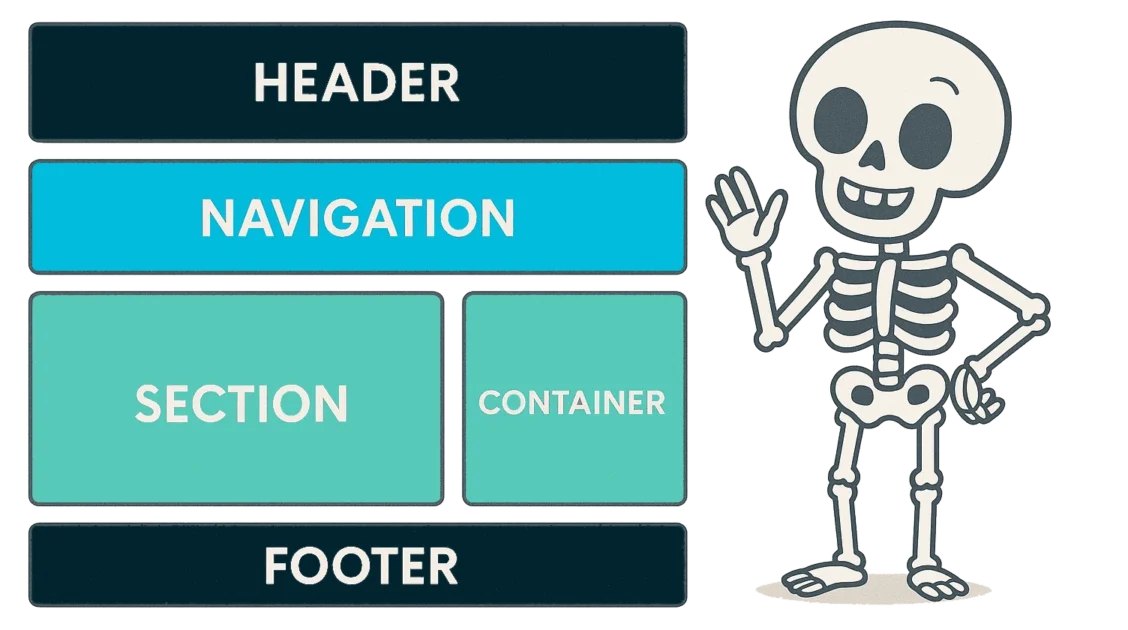
Structural Elements – A Site Skeleton
Header, Footer, and Navigation are the most common.
- Header – this is an element that’s usually at the top of every page and almost always includes the business logo, phone number and address if relevant, and navigation. The header may include other important points of interest like social links, and important buttons.
- Footer – this element is at the bottom of every page. The information that goes in the footer can vary a lot depending on the type of business, but it usually repeats the logo and contact information. Sometimes links that are not found in the main navigation may go in the footer, for example a link to the privacy policy.
- Navigation or Menu – the list of items that link to the main pages on the website. We’ve often heard clients refer to the main navigation items as “tabs” but that’s not technically correct (tabs are actually a different feature).
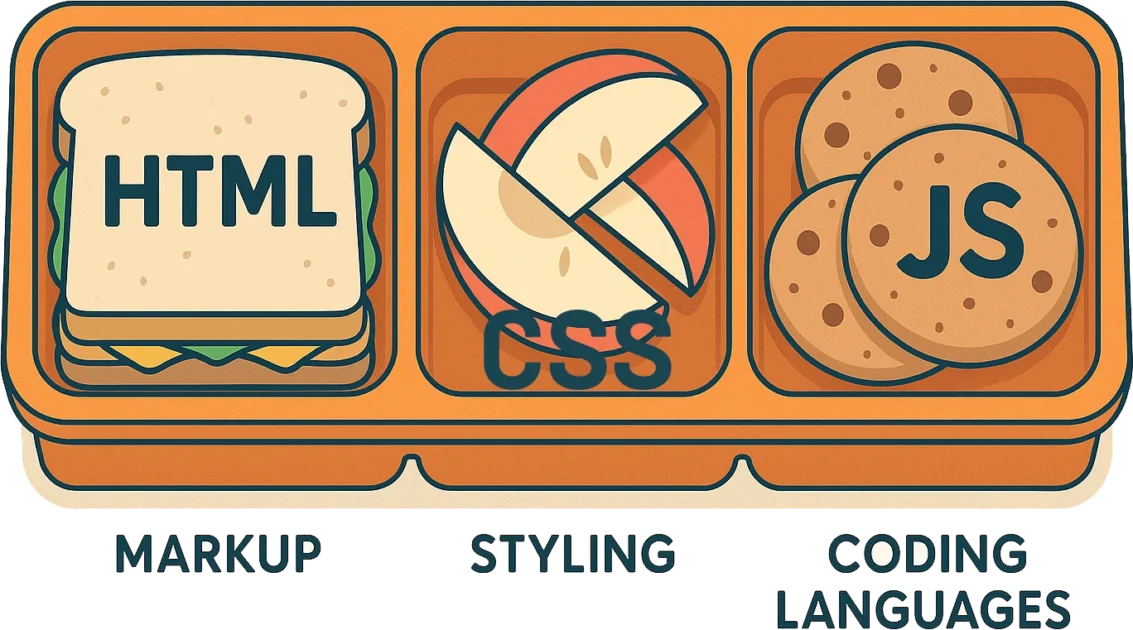
Markup, Styling, and Coding Languages – The Full Stack Snack Pack
We’re focusing on the code stack used with WordPress (since that’s our specialty) but there are hundreds of programming and markup languages out there.
- HTML (HyperText Markup Language) – The standard language used to create and structure content on the web. HTML defines elements like headings, paragraphs, links, images, and the elements we mentioned above.
- CSS (Cascading Style Sheets) – Used to style and visually present HTML content. CSS controls layout, colors, fonts, spacing, and responsiveness.
- Javascript – A scripting language that adds interactivity and dynamic behavior to websites. Examples include dropdown menus, sliders, and form validations.
- PHP – A server-side scripting language widely used for web development. PHP is embedded within HTML and is executed on the server to generate dynamic web pages. It’s especially common in content management systems like WordPress.
- jQuery – JavaScript library designed to simplify HTML DOM manipulation, event handling, animations, and Ajax interactions. It’s not as popular as it once was, but it’s still included with WordPress for now.
- React – A modern JavaScript library for building user interfaces, particularly single-page applications. React is used with the Block Editor in WordPress.
Domains, Hosting, and Name servers (oh my!)
- Domain – A domain is the human-readable address of a website, like
meldevwebsites.com. It’s what users type into their browser to visit your site. Domains are like street addresses on the web—they help people find where your content lives. - Domain Registrar – A domain registrar is a company authorized to sell and manage domain names. You use a registrar to purchase, renew, and configure your domain.
- Web Hosting – This is where your website “lives”. Web hosting is the service that stores your website’s files and makes them accessible online.
- Name Servers – Name servers are part of the Domain Name System (DNS). They tell the internet where to find your website. When someone types your domain, name servers translate it into the IP address of the server hosting your site.

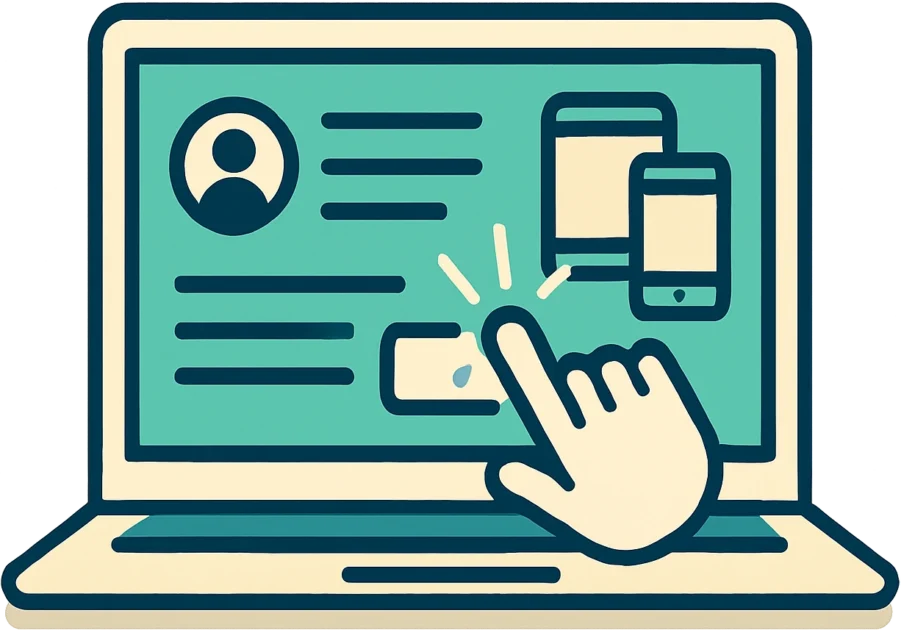
UX, UI, Responsiveness – Click Happens
- UX (User Experience) – Refers to how a user feels while interacting with a website. Good UX emphasizes usability, accessibility, and a smooth journey for the user.
- UI (User Interface) – The visual elements of a website—buttons, menus, layouts—that users interact with. UI design focuses on look and layout.
- Responsive Design – A design approach that ensures a website looks good and functions well on all devices, from desktop monitors to smartphones.
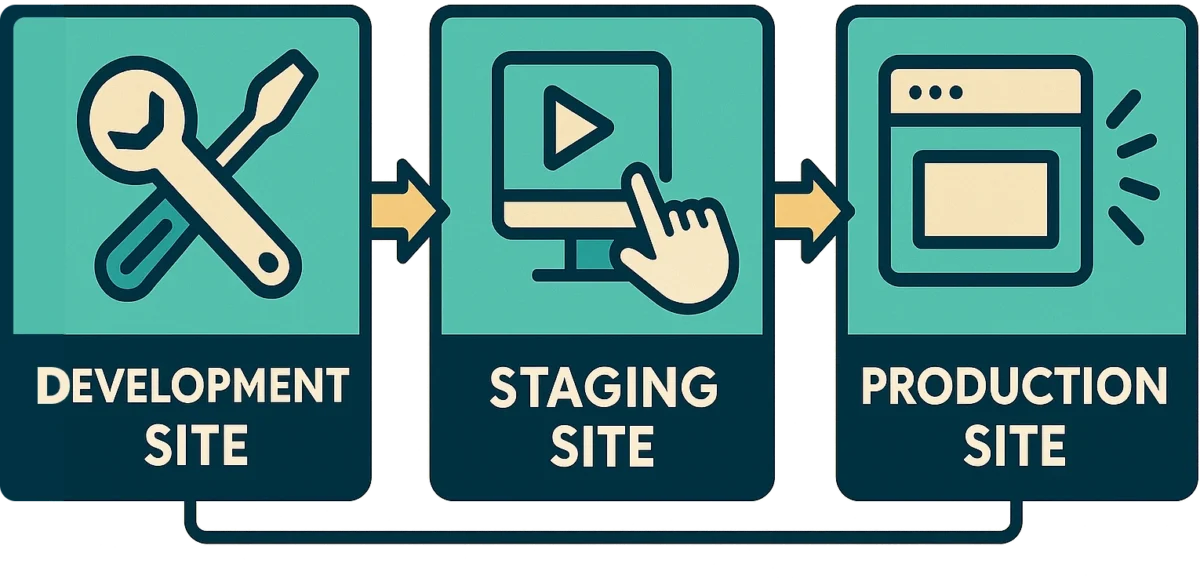
Development, Staging, and Production Sites – The Web Design Pipeline
- Development Site – A private environment where developers build and test new features, design changes, or functionality. It’s often messy, experimental, and only visible to the internal team. Bugs are expected here.
- Staging Site – A clone of the production site used for final testing before changes go live. It mirrors the real site closely but isn’t public-facing. It’s where you check that everything works as expected.
- Production (Live) Site – The public-facing version of your website—the one visitors and users actually interact with. This is your real, polished site that’s hosted and available on the internet.
WordPress Terms – It’s a WordPress Thang
There are quite a lot of terms we could go over regarding WordPress, and that’s going to be its own post. Here a few to get started:
- Theme – A collection of templates and stylesheets that define the visual design and layout of a WordPress site. Themes control how your site looks, including colors, fonts, and page structure.
- Plugin – An add-on that extends the functionality of your WordPress site without altering the core code. Plugins can add features like contact forms, SEO tools, e-commerce, and more.
- Gutenberg (Block Editor) – The default WordPress editor that allows users to build pages and posts using a system of content “blocks.” Each block can represent a paragraph, image, button, or other content element.
- Custom Post Type – Beyond regular posts and pages, WordPress allows the creation of custom content types, such as “Portfolio,” “Testimonials,” or “Products,” often used in themes or plugins.
Images, Thumbnails, and Icons – Small, Smaller, Symbolic
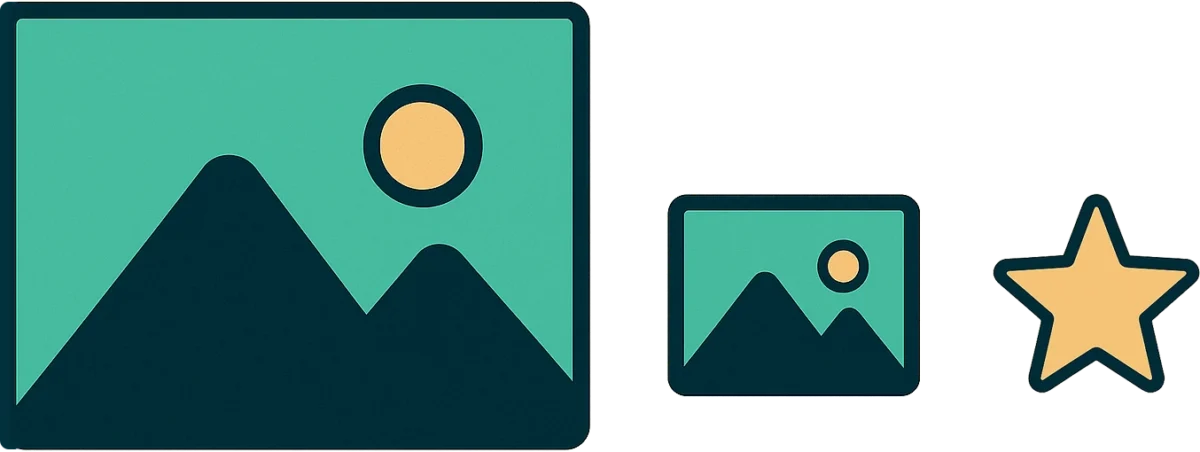
- Image
A general term for any graphic, photo, or visual file displayed on a website. Images can be large or small, decorative or informative, and are used to enhance content, tell stories, or showcase products.
Common formats: JPG, PNG, WebP - Thumbnail
A smaller version of a larger image, used as a preview. Thumbnails help users browse content quickly without loading large files.
Use cases: Blog post previews, gallery grids, video previews.
Key trait: Clickable image that usually opens a larger version or related content. - Icon
A small, symbolic graphic used to represent an action, tool, or concept. Icons are often used in navigation, buttons, or to enhance UI clarity.
Use cases: A trash can for delete, a magnifying glass for search, or a heart for favorites.
Key trait: Minimal detail, often part of a consistent set or library (e.g., Font Awesome).
Understanding web design terminology is more than just learning buzzwords—it’s about building a common language between designers, developers, and clients. From structural elements like headers and footers to deeper concepts like UX, responsiveness, and the web development pipeline, knowing these terms empowers clearer communication and more efficient collaboration. Whether you’re building your first website or refining your design process, this shared vocabulary is the foundation for creating engaging, effective, and user-friendly digital experiences.